
Care
AT YOUR FINGERTIPS

Refill Prescriptions

Pay
Bills

Make Appointments

Fill Out
Forms

Send/Receive Messages

Take
Surveys
Take Control of Your Health
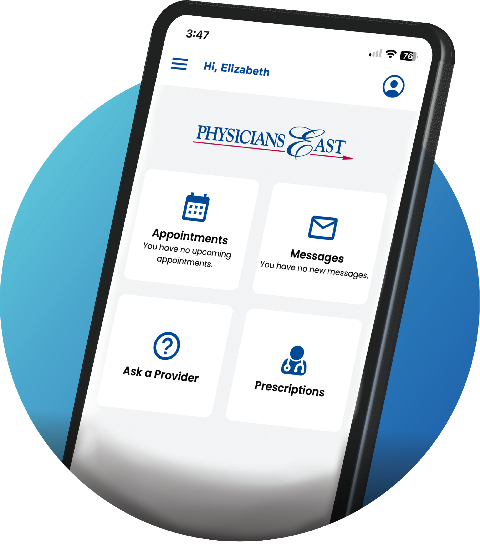
Physicians East offers the PxP patient portal. This patient portal allows secure online access to your health information by using a computer or mobile device. With this portal you can make appointments, pay bills, review prescriptions, view upcoming or past appointments, view a health summary from your Physicians East record, view your test results, fill out forms, and communicate directly with your care team.
Frequently Asked Questions
We will use the email address you provide during your visit to send an invitation to the portal. You may request an invite to join the portal at any time by calling the Portal Help desk at 252-413-6281 or speaking to a Physicians East representative.
For questions regarding care needs, please reach out to your provider care team.
For technical questions regarding the portal, you may contact our help desk at 252-413-6281. Please include your full name, date of birth, email address, and phone number when leaving a message. We will return your call the same day for calls made during our regular business hours before 4:00 pm.
You may change your password at any time by logging into the portal and choosing “Account” in the top right corner. Then select edit to make changes.
You can request a password change by clicking the “Forgot Your Password” link on the portal sign-in page.
The portal pulls information from your Physicians East medical record. Patients can request a chart summary at any time. Patients may also see test results, request medication refills, request a copy of their medical records, or send messages to their provider care team.
You can inquire about questions you may have regarding your care or requesting or changing an appointment.
- Open the patient portal.
- From the left pane, select “Ask a Question”.
- Click the type of question: Billing Question or Medical Question.
- Enter in the details of the question. Will need to enter location and provider.
- Select Continue.
- Submit Question.
Use of the portal is for non-urgent correspondence. If you are experiencing a medical emergency, please dial 911 or your local emergency number for immediate assistance. We ask that you allow two business days for our response to messages made via the portal. Some correspondence may require you to come into the office to be seen.
- Open the patient portal.
- From the left pane, select “Messages”.
- To view the contents of a message, select the message.
- To archive a message, open the message, and select Archive.
- To unarchive a message, open the archived message, select Unarchive.
- Open the patient portal.
- From the left pane, select “Medications.”
- Select “Rx Request” in the top right corner.
- Choose a Location and Provider.
- Select Continue.
- Select a Pharmacy from the list, then select Continue. You can add a pharmacy to the list by selecting Add a Pharmacy. You can search for pharmacies by entering phone number, address or name.
- In the medications section, select the medication and then continue. To request a new medication, enter the medication name in request a new medication for the matching medication.
- Select Confirm.
- Open the patient portal.
- From the left pane, select “Test Results”.
Patients may request a chart summary from their medical records at any time.
- Open the patient portal.
- From the left pane, select “Health Record.”
- Enter the date range for the data you would like to see.
- You can also click the “Request updated records link” in the top right corner.
- Open the patient portal.
- From the left pane, select “Health Forms”.
- Select location then continue.
- Select Authorization to Release Information.
- Complete form and submit.
If you see information that you believe is not correct, please discuss this information with your provider at your next visit.
- Open the patient portal.
- From the left pane, select “Appointments”.
Lab results will be shared on the portal following the visit. We are working on the automation of imaging and office visits. In the interim, you may request this information be shared.
Yes, this is called proxy access. Proxy access allows another person the patient chooses to have access to the portal account. For minors, the parent or legal guardian can set up the account. For adults, the patient must authorize this by completing a form. The Physicians East Proxy Access Request Form must be completed at one of our Physicians East locations. This form cannot be completed online. Supporting documentation will need to be presented, example healthcare power or attorney or guardianship appointment, if someone other than the adult patient is completing the form.
Minors under the age of 10: Chart summaries, treatment notes, current medications, diagnoses, reminders, test results and communicate with care team.
Minors 10-17: Due to state confidentiality laws, information will be limited to allergies, immunizations, schedule appointments and communicate with care team.
Once the minor turns 18, the portal account is no longer available. The patient is then considered an adult and will need to set up the portal access.
Yes. This may be done at any time by contacting your provider.
No. Your portal account should only be used for questions regarding your care.
Each patient will need to have a portal account.